
Your gaming PC is underperforming. Maybe you’re getting sudden FPS drops in the middle of a crucial Warzone clutch. Maybe your textures look like garbage despite running a supposedly powerful GPU. Or maybe your loading screens are so long you could make a sandwich before the match starts.
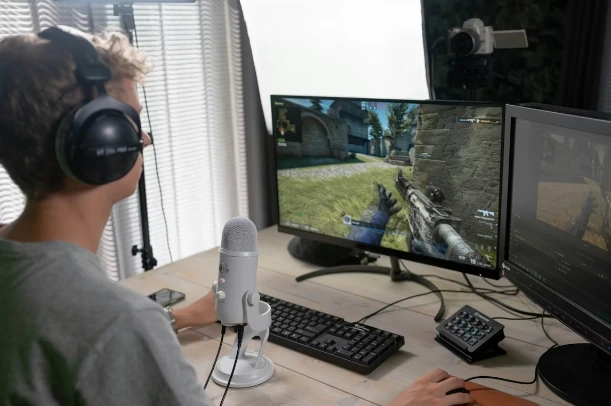
Here’s the thing: 40% of gamers are losing 20-30% of their performance to completely fixable problems. Not because their hardware is outdated. Not because they need to spend another thousand dollars. But because of simple, stupid mistakes that nobody talks about.
After helping thousands of players optimize their setups at Battlelog.co, we’ve seen the same performance-killing errors over and over. The good news? Most of them take less than an hour to fix.
The Real Culprits Behind Your Performance Issues
Let’s cut through the noise. When your PC starts struggling, everyone immediately screams “upgrade your GPU!” But that’s rarely the actual problem. Most performance issues in 2025 come down to five fixable factors that have nothing to do with buying new hardware.
Thermal throttling is probably murdering your FPS right now. Dust builds up in your case over months, your thermal paste dries out, and suddenly your CPU is hitting 95°C and throttling itself down to avoid damage. You’re losing up to 30% of your performance during extended gaming sessions, and you don’t even realize it’s happening.
Then there’s VRAM shortage. If you’re running anything less than 10GB of VRAM at 1080p in 2025, you’re playing on borrowed time. Modern games are eating VRAM like candy, and when you run out, the performance degradation is brutal. Your FPS counter might show 60, but your textures are muddy, pop-in is constant, and your effective performance is cut by 20-50%.
Storage bottlenecks are another silent killer. Running games off an old HDD or even a SATA SSD in 2025 is like bringing a knife to a gunfight. Load times stretch to 10+ seconds, texture streaming stutters, and you’re already dead before the map fully loads. NVMe drives cut that down to 1-2 seconds and eliminate those mid-game hitches.
Memory is becoming critical too. RAM shortage is a real thing now, with AI development eating up the supply and new AAA titles demanding more than ever. Running less than 32GB in 2025 means you’re going to experience stuttering and terrible 1% lows, especially in games like Escape From Tarkov or Modern Warfare 3.
And finally, component imbalances create weird bottlenecks nobody talks about. You might pair a brand-new RTX 4070 with a Ryzen 3600 and wonder why your FPS barely improved. Or run a cutting-edge GPU on a motherboard that can’t deliver enough power. These mismatches create frame pacing issues that make games feel worse even when the numbers look fine.
Hardware Problems You Can Actually Fix
Let’s start with the easiest wins. Thermal management is something you can fix this afternoon with ten bucks and thirty minutes.
Power off your PC completely. Unplug it. Open the case and grab a can of compressed air. Blast out every fan, every heatsink, every intake vent. Pay special attention to your GPU fans and CPU cooler. You’d be shocked how much dust accumulates in there after even six months of use.
Now check your thermal paste. If you’ve never replaced it, or if it’s been more than two years, it’s probably dried out and cracked. Remove your CPU cooler, clean off the old paste with isopropyl alcohol, and apply a fresh layer. Rice grain size in the center, then let the cooler spread it when you mount it back on.
Download HWMonitor or HWiNFO and check your temperatures under load. Your CPU should stay under 80°C during gaming, and your GPU under 85°C. If you’re hitting 90°C+, you’ve found your problem. Cleaning alone can restore dramatic FPS improvements by eliminating thermal throttling.
The VRAM problem is trickier because you can’t just add more VRAM to your existing GPU. But you can diagnose it. Run MSI Afterburner while gaming and watch your VRAM usage. If you’re constantly maxing out at 8GB or 10GB, that’s your bottleneck. Games will start reducing texture quality on the fly to avoid crashes, and your visuals will suffer even if your FPS stays stable.
The fix is upgrading to a GPU with at least 12GB of VRAM if you’re playing at 1080p or higher. The RTX 4070 Ti or RX 7800 XT are solid options. It’s not cheap, but if you’re constantly hitting VRAM limits, no amount of settings tweaking will help.
RAM upgrades are easier and cheaper. Open Task Manager while gaming and check your memory usage. If you’re consistently above 80% utilization, you need more RAM. Upgrade to 32GB of dual-channel DDR4 or DDR5, depending on your motherboard. Make sure to enable XMP/DOCP in your BIOS so you’re actually running at the rated speed.
The performance difference is night and day. Modern AAA games with high-res textures and complex environments can easily use 20GB+ of RAM. Running out means Windows starts using your SSD as virtual memory, which is orders of magnitude slower and causes those microstutters everyone complains about.
Storage upgrades might sound boring, but they’re transformative. If you’re still running games off a hard drive in 2025, stop. Just stop. Even a cheap SATA SSD will change your life, but a PCIe Gen 4 NVMe drive is what you actually want.
Run CrystalDiskMark to benchmark your current drive. If you’re seeing sequential read speeds under 500 MB/s, you need an upgrade. A decent NVMe SSD will hit 5,000-7,000 MB/s, which translates to faster load times, smoother texture streaming, and better overall responsiveness.
Clone your drive to the new SSD using something like Macrium Reflect, or do a fresh Windows install if you want maximum performance. Install your most-played games on the NVMe drive, and watch load times drop from 15 seconds to 2 seconds.
Software Mistakes That Tank Performance
Hardware is only half the story. Outdated drivers cause more problems than people realize, especially after major Windows updates or game patches.
GPU drivers are the obvious one. If you haven’t updated in six months, you’re leaving performance on the table. But here’s the trick: don’t just install new drivers over old ones. Use DDU (Display Driver Uninstaller) to completely remove your old drivers first, then do a clean install of the latest version. This eliminates conflicts and corruption that accumulate over time.
Chipset drivers, BIOS updates, and audio drivers matter too. An outdated chipset driver can prevent your CPU from boosting properly. An old BIOS might not have the microcode updates that fix stability issues. Check your motherboard manufacturer’s website every few months and update anything that’s out of date.
Background processes are the silent FPS killers. Open Task Manager and check your CPU and GPU usage while idle. If you’re seeing consistent spikes or high baseline usage, something’s eating resources.
Discord, Spotify, Chrome with 40 tabs, that RGB software you installed two years ago and forgot about—all of it adds up. Use Task Manager to identify the worst offenders and either close them or prevent them from auto-starting. Gaming mode in Windows 11 helps, but it’s not a magic fix.
Windows updates love to reset your power settings too. Go into Control Panel > Power Options and make sure you’re on High Performance mode, not Balanced. Check your GPU settings in NVIDIA Control Panel or AMD Software and make sure power management is set to “Prefer Maximum Performance.”
Antivirus and anti-cheat software can impact performance, but contrary to popular belief, they’re usually not the main problem if your system is properly configured. Modern anti-cheat systems are designed to minimize impact, and disabling them will just get you banned.
What actually helps is making sure your game is running with proper priority. Set the game’s process priority to “High” in Task Manager, or use a tool like Process Lasso to do it automatically. This ensures Windows gives your game more CPU time when resources are contested.
Component Balance and System Configuration
Bottlenecks are one of the most misunderstood concepts in PC gaming. Everyone obsesses over CPU bottlenecks, but the reality is more nuanced.
At 1080p, CPU performance matters more because your GPU can render frames faster than your CPU can prepare them. At 1440p and 4K, GPU performance dominates. So if you just upgraded to a 1440p monitor and paired your new RTX 4080 with a 5-year-old CPU, you might actually see minimal FPS differences compared to your old GPU.
Monitor your utilization while gaming. If your GPU is at 99% and your CPU is at 60%, your GPU is the bottleneck. If your CPU is maxed and your GPU is idling, your CPU is the bottleneck. This tells you where to invest for your next upgrade.
But here’s what most guides won’t tell you: bottlenecks aren’t always bad. As long as you’re hitting your target FPS, it doesn’t matter if one component isn’t fully utilized. The goal is smooth, consistent performance at your desired resolution, not theoretical maximum FPS.
Power delivery matters too. A high-end GPU pulling 350W needs proper PSU cables and headroom. Running a 350W GPU on a 550W PSU with a daisy-chained power cable is asking for instability. Upgrade to a quality 750W+ PSU with separate cables for each GPU power connector.
Quick Wins for Immediate FPS Improvements
Want results right now? Here are five things you can do in the next hour that will improve your performance.
Clean your PC physically. Seriously. Compressed air, five minutes, done. You’ll drop temperatures by 5-10°C and eliminate thermal throttling. This alone can restore frames you didn’t even know you were losing.
Update your GPU drivers using DDU for a clean install. This fixes compatibility issues, adds optimizations for recent games, and can boost FPS by 5-15% in some titles.
Close background applications before gaming. Discord, Spotify, Chrome—all of it. You’d be shocked how much CPU and RAM you free up. Task Manager is your friend.
Enable XMP/DOCP in your BIOS if you haven’t already. Your expensive high-speed RAM is probably running at default 2133MHz speeds, which is leaving performance on the table. This takes 30 seconds and can improve 1% lows significantly.
Check your monitor refresh rate in Windows display settings. If you bought a 144Hz monitor but Windows is set to 60Hz, you’ve been playing at 60 FPS this whole time. Set it to the max refresh rate your monitor supports.
Maintenance and Long-Term Strategy
Performance optimization isn’t a one-time thing. It’s ongoing maintenance that keeps your system running at peak efficiency.
Clean your PC every three to six months. Dust buildup is inevitable, and thermal performance degrades over time. Set a calendar reminder, and actually do it. Replace thermal paste every two years or whenever you notice temperatures creeping up.
Monitor your drive health with tools like CrystalDiskInfo. SSDs and HDDs fail eventually, and catching it early prevents data loss and performance degradation. If your drive shows warnings or reallocated sectors, back up immediately and replace.
Keep your software updated, but be strategic about it. GPU drivers, chipset drivers, BIOS—update them regularly, but don’t rush to install every beta driver that comes out. Stability matters more than bleeding-edge features.
Use monitoring tools to track your system over time. HWiNFO, MSI Afterburner, and FrameView let you log temperatures, FPS, and utilization during gaming sessions. This historical data helps you spot trends and catch problems before they become critical.
And finally, optimize your Windows installation every six months or so. Run disk cleanup, defrag your HDD (but not your SSD), and consider a fresh Windows install every year or two to eliminate accumulated cruft.
Your Performance Checklist
Your gaming PC doesn’t need to be underperforming. Most issues come down to fixable mistakes that take more time than money to solve.
Start with the easy wins: clean your PC, update your drivers, close background apps. Then tackle the bigger problems: check your VRAM and RAM usage, upgrade your storage if needed, and make sure your components are balanced.
The performance is there. You just have to stop making the mistakes that are holding it back. And when you’re ready to take your competitive performance to the next level, the community at Battlelog.co has the tools and knowledge to help you dominate every match.
Stop leaving FPS on the table. Your opponents certainly aren’t.